
F1.C2 — Your First Flutter App (Chrome-Only Setup)
Local Machine. Local Folder. Zero Confusion.

Read This First (Very Important ⚠️)
Flutter does NOT work properly when:
Your project is inside OneDrive
iCloud Drive
Google Drive
Any synced cloud folder
If your Flutter project lives in a cloud folder, you will see:
Random errors
Files not updating
Hot reload failing
Builds breaking for “no reason”
This is not your fault.
Flutter expects a local disk.
✅ The Rule (Memorise This)
Flutter projects MUST live on your local drive
Examples:
Windows →
C:\flutter_projects\macOS →
/Users/yourname/flutter_projects/
❌ NOT:
C:\Users\Name\OneDrive\Documents/iCloud/Google Drive/
Step 1 — Create a Local Folder (Do This Exactly)
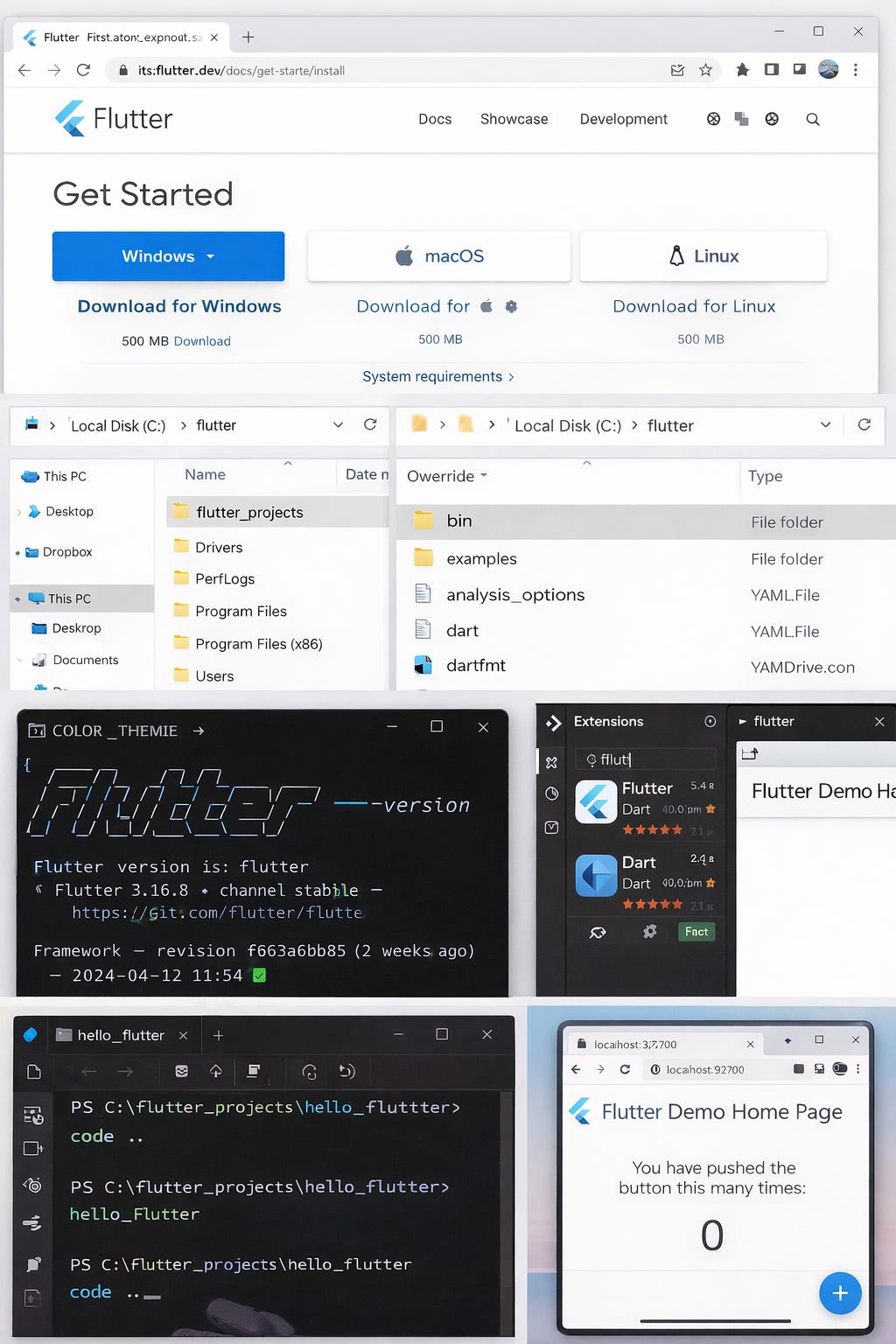
On Windows
Open File Explorer
Click This PC
Open Local Disk (C:)
Create a new folder named:
flutter_projects
Final path should look like:
C:\flutter_projects\
Correct Folder Location (Windows)
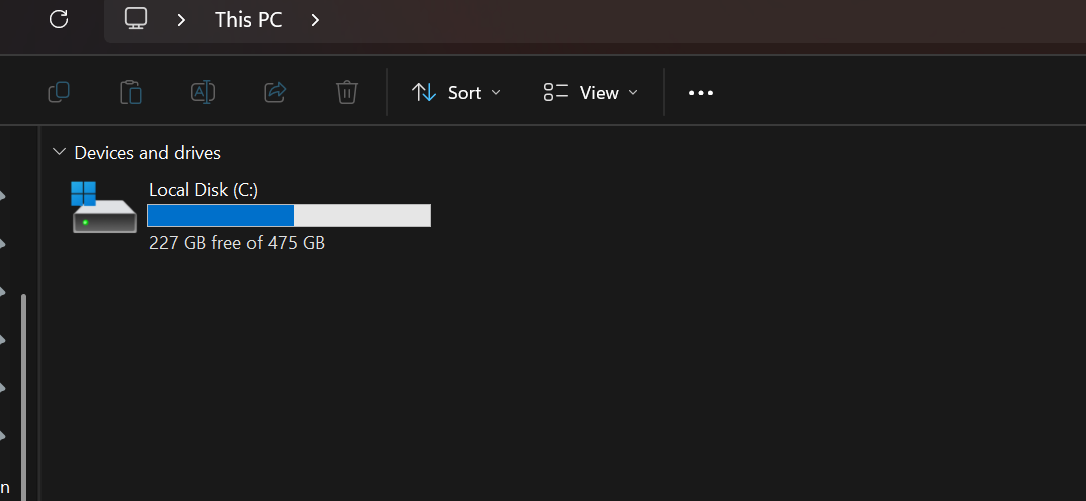
Image should show:
File Explorer
Local Disk (C:)
A folder named
flutter_projectsNOT inside OneDrive
On macOS
Open Finder
Go to Macintosh HD
Open Users
Open your username
Create a folder named:
flutter_projects
Final path:
/Users/yourname/flutter_projects/
Place image right here
Image should show:
Finder window
User home directory
Folder named
flutter_projectsiCloud Drive clearly not used
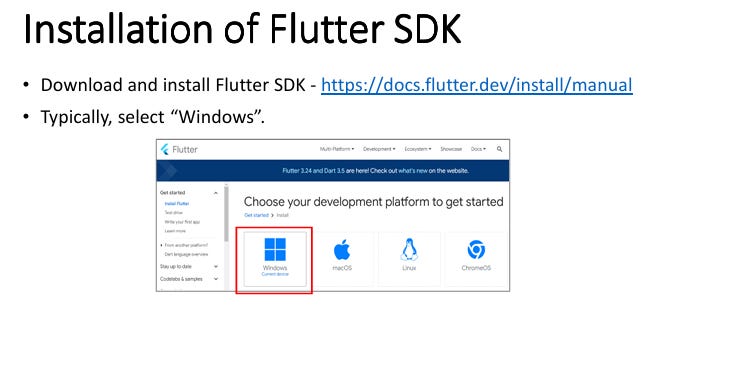
Step 2 — Download Flutter SDK (Local Only)
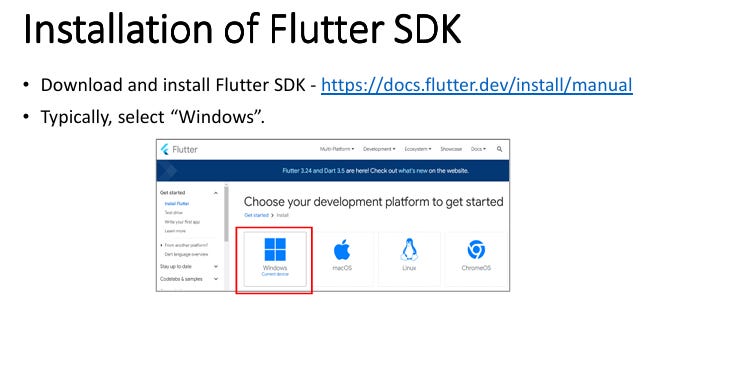
Download Flutter from:
👉 https://flutter.dev/docs/get-started/install
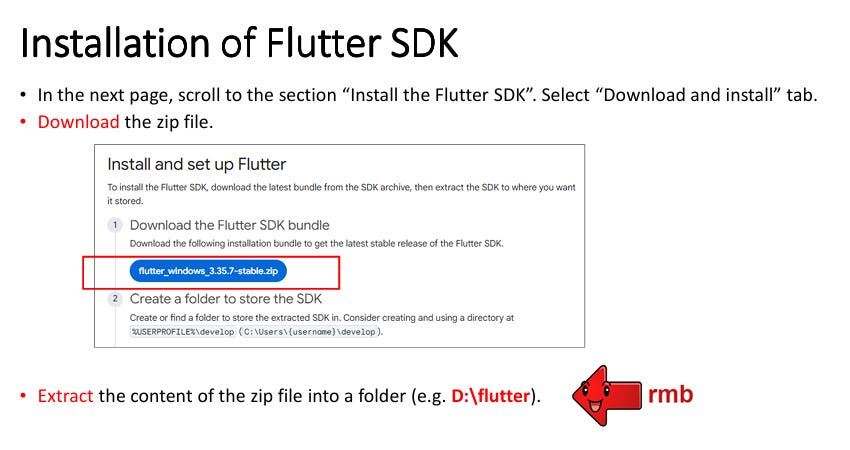
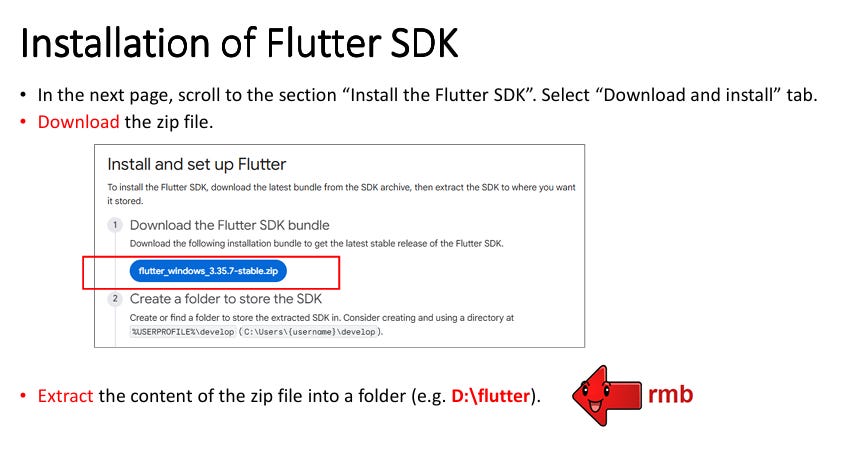
After downloading:
Extract the Flutter folder
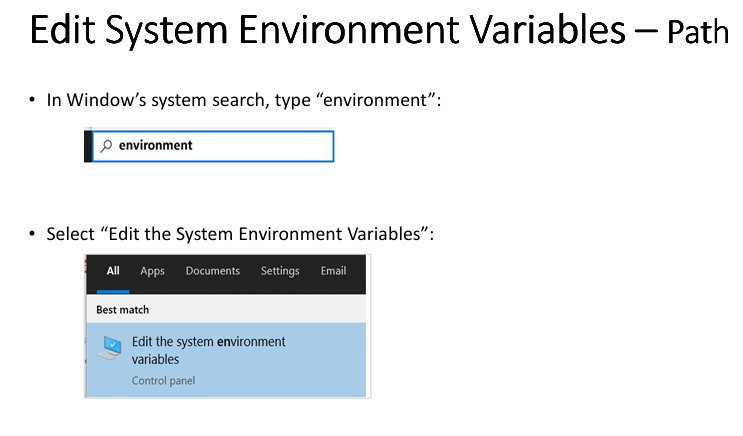
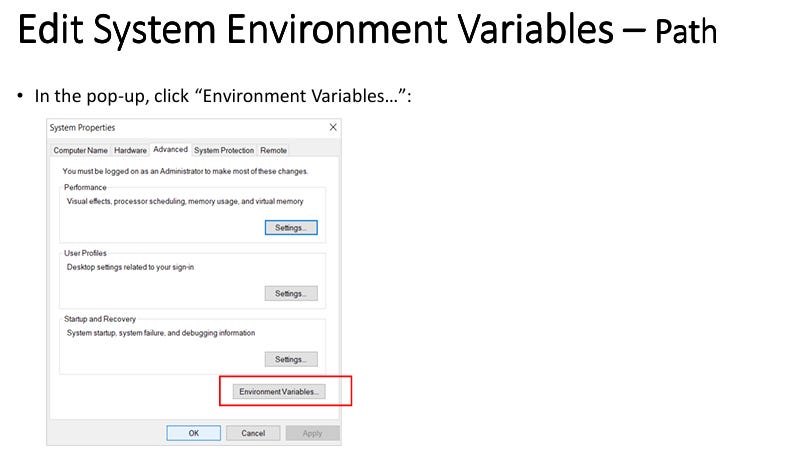
Place it directly on your local drive
Recommended locations:
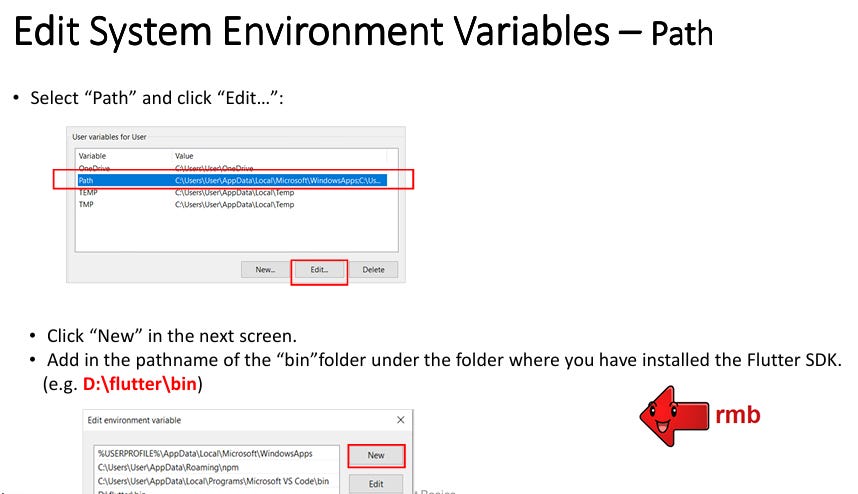
Windows →
C:\flutter\macOS →
/Users/yourname/flutter/
❌ Do NOT place Flutter inside:
Downloads synced folders
Desktop if it syncs to iCloud
Any cloud-backed directory
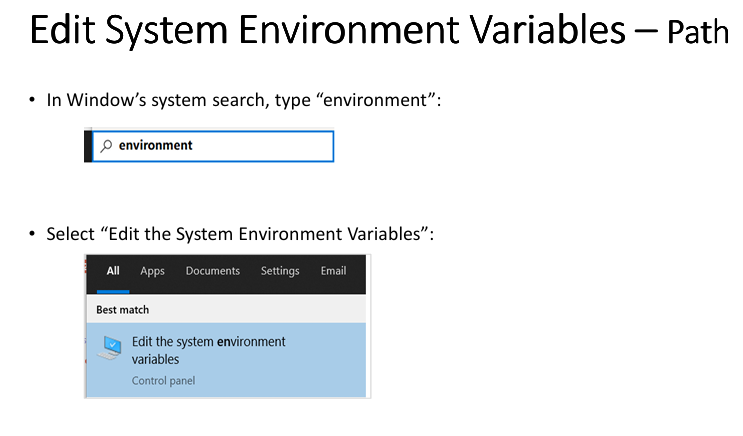
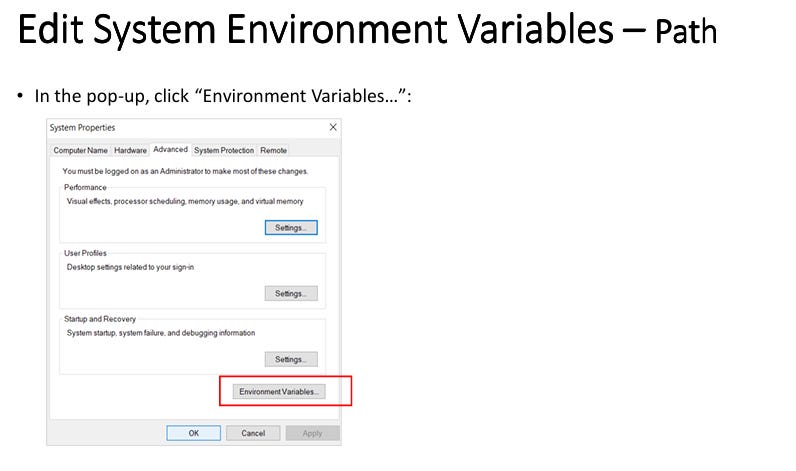
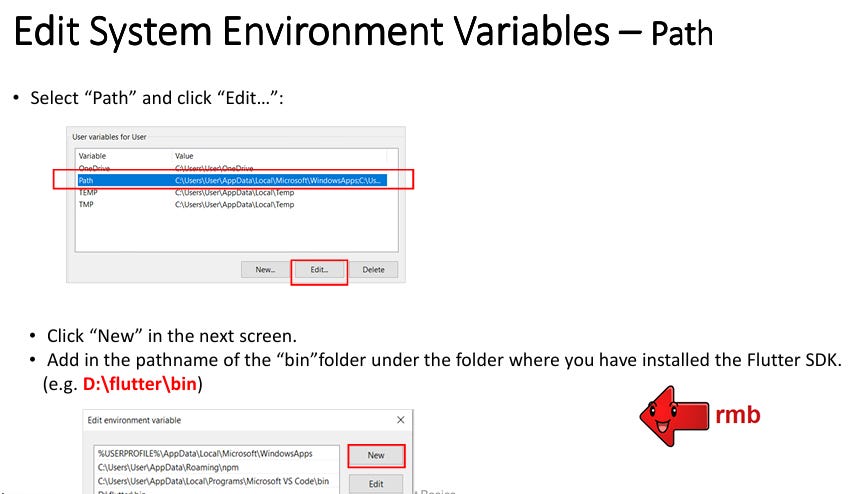
Step 3 — Verify Flutter Installation
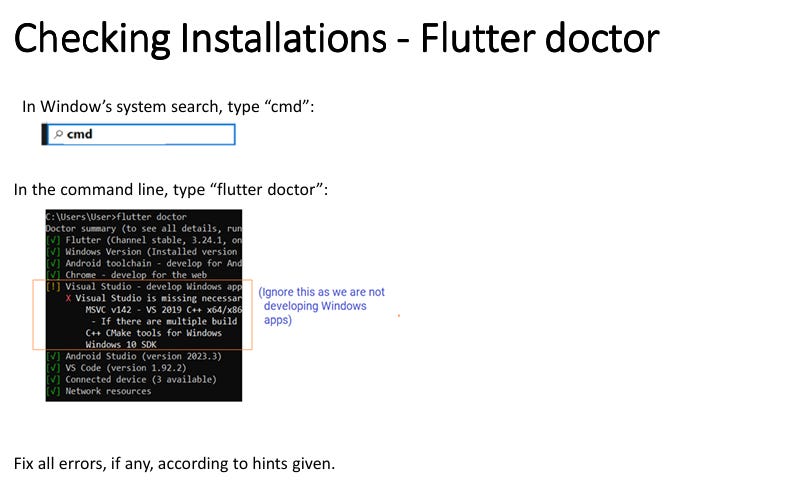
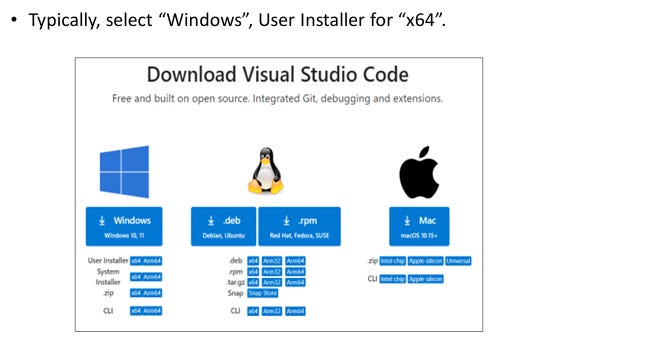
Step 4 — Install Visual Studio Code
Download VS Code:
👉
https://code.visualstudio.com/
Install it normally.
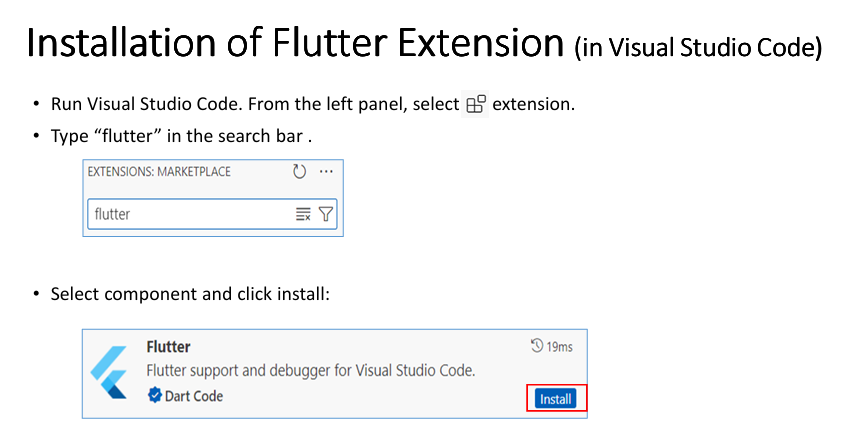
Then open VS Code and install these extensions:
Flutter
Dart
These are mandatory.
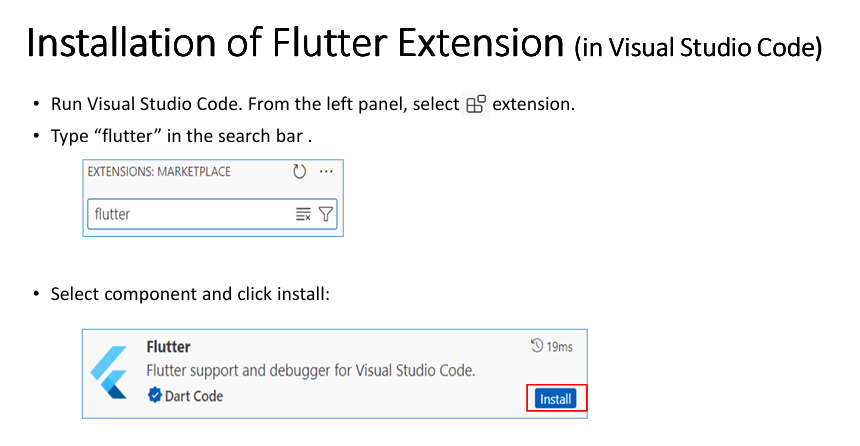
VS Code Extensions
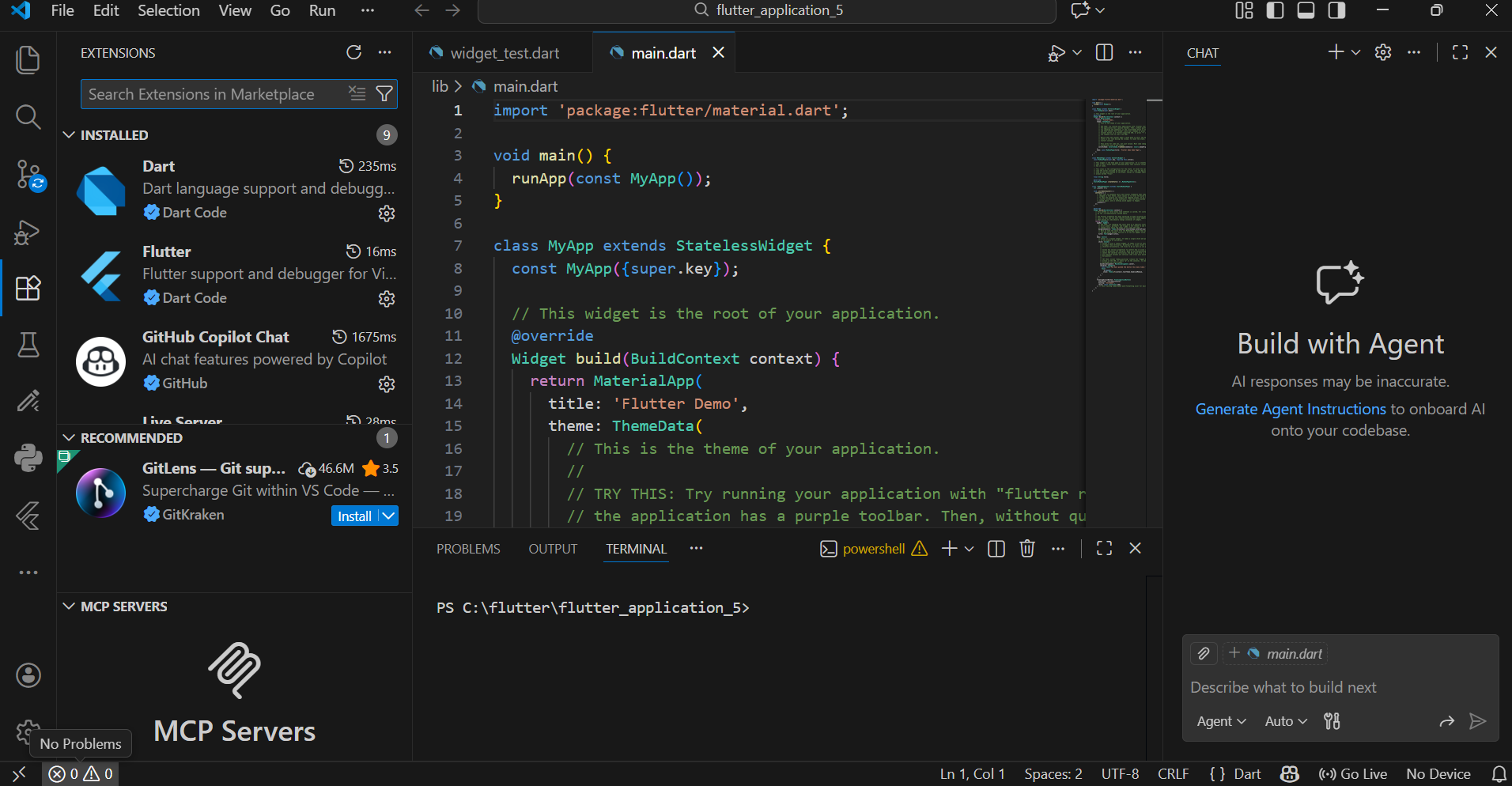
This is how it should look like:
VS Code interface
Visit the Extensions panel
install Flutter and Dart inside as seen on top left
Image Prompt:
Step 5 — Create Your Flutter Project (Local Folder Only)
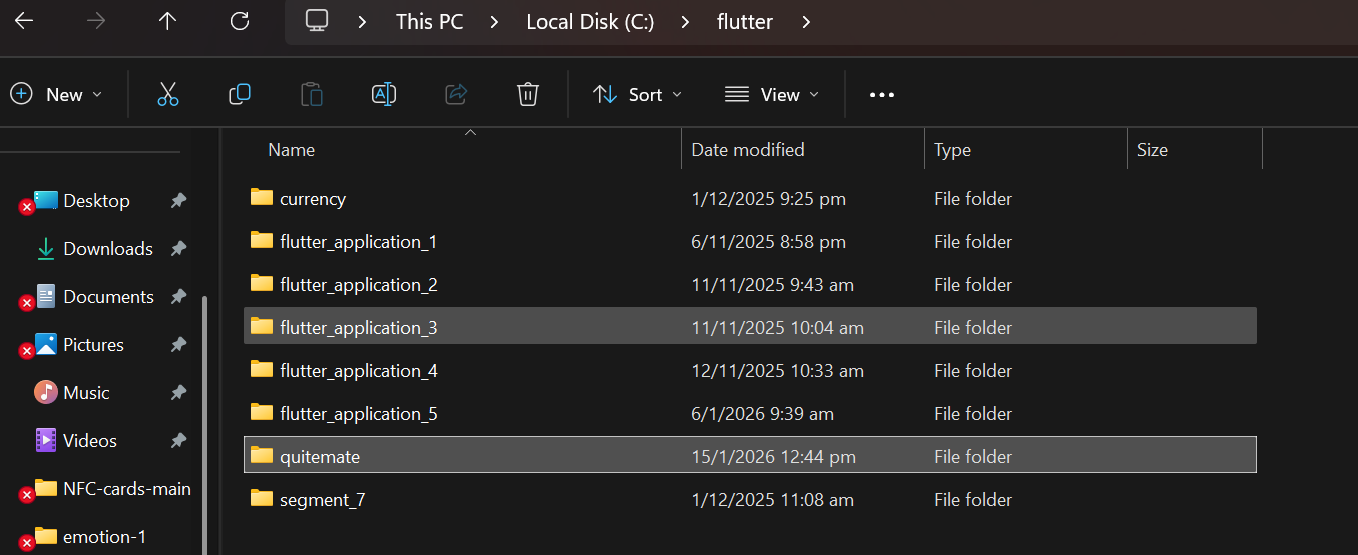
Open Terminal and navigate to your local project folder.
Example (Windows):
cd C:\flutter_projects
Example (macOS):
cd ~/flutter_projects
Now create the project:
flutter create hello_flutter
Then open it in VS Code:
cd hello_flutter
code .
Project Inside flutter_projects
Step 6 — Run Flutter in Chrome (No Emulator)
Flutter App Running in Chrome
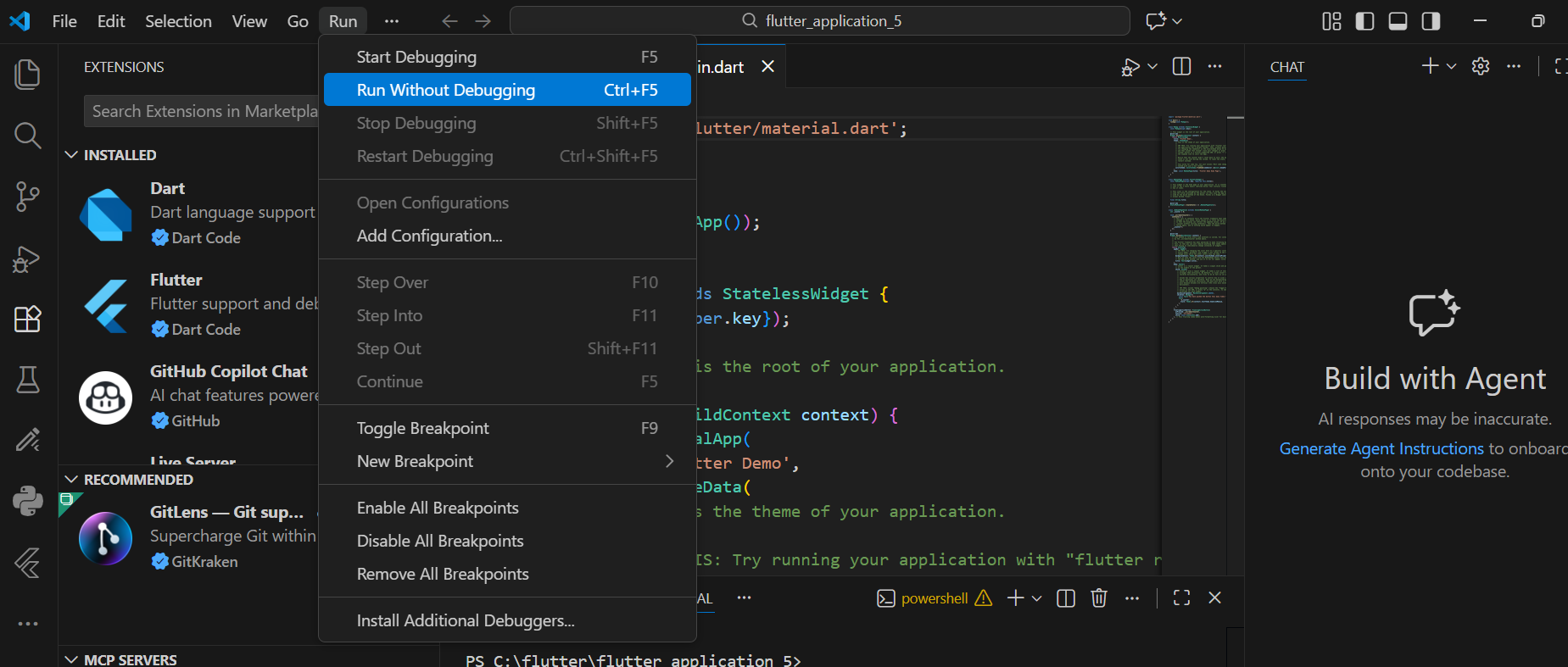
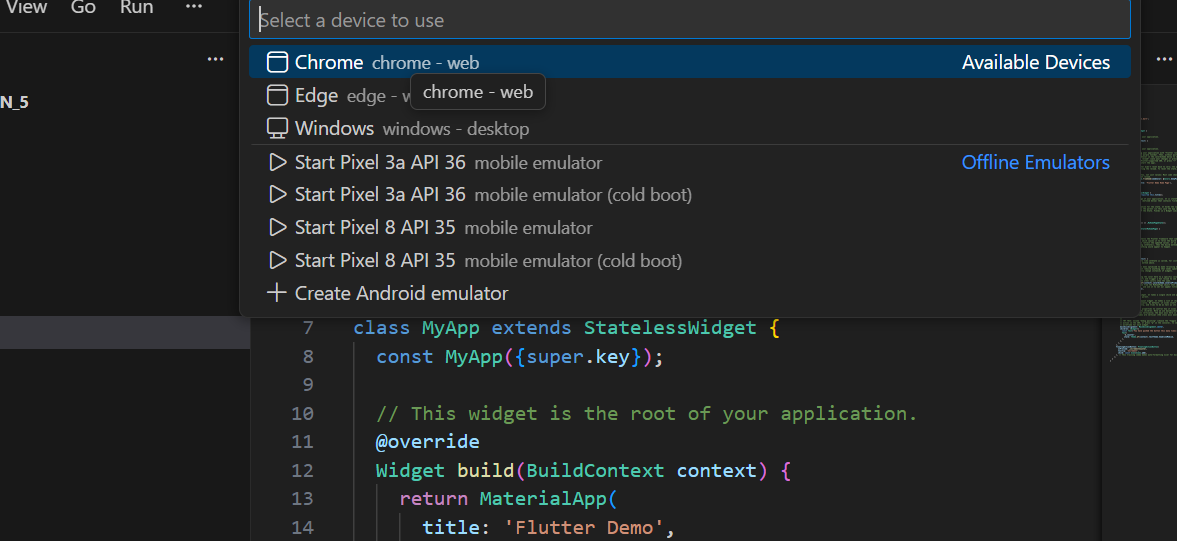

To run the app, run the app by clicking run without debugging and then selecting chrome. and remember you can always edit the code in the lib folder, that’s where you’ll find all your code. All the .dart files are where you’ll work on the code
If Something Breaks — Check This First
Before asking for help, confirm:
✅ Project is on local disk
❌ Not inside OneDrive / iCloud / Google Drive
✅ Flutter SDK is local
✅ Running in Chrome
Most beginner issues come from cloud folders.
Now you know the trap — and you avoided it.
Next — F1.C3
F1.C3 — Dart Basics That Actually Matter
We’ll cover:
Variables
Functions
Classes
How Dart powers Flutter widgets
Still clean.
Still practical.
Now with a rock-solid setup